pitShop.ai's Instagram connection isn't yet reviewed and approved by Meta (Instagram's parent company) for public use — that review is in progress. Until it's done, Instagram only lets people we've explicitly added as testers of our app connect their account. So for now, connecting Instagram takes one extra round trip: we add you as a tester, Instagram sends you an invitation, and you accept it — before you try to connect Instagram inside pitShop.
Skip this and the connection will fail
If you try to connect Instagram in pitShop before accepting the tester invitation, Meta's authorization screen will reject it. If that happens to you, come back here, accept the invitation below, then try connecting again.
How it works
- Send us your Instagram username, if you haven't already — reply to whichever email pointed you here, or use Contact support in the creator portal.
- We add you as a tester in our Meta app. This is on our side — you don't need to do anything for this part, but it isn't instant, so give it a little time after you send us your username.
- Instagram sends you a tester invitation. Accept it using the steps below, on a desktop browser — this is the part that's on you.
- Go back to pitShop and connect Instagram as normal, from the Setup Wizard or from Settings. It'll work like any other connection from here on.
Prefer video?
This short walkthrough covers the whole process — accepting the tester invitation, then connecting Instagram in pitShop. Skip ahead to the written steps below if you'd rather read.
Video walkthrough — accepting the invitation and connecting Instagram
Accepting the invitation
Desktop only for this part
The Tester invitations tab you need in step 5 only exists on instagram.com in a desktop or laptop browser — it isn't there in the Instagram mobile app, or in Instagram opened in a mobile browser. If you're only set up on your phone, open instagram.com on a computer for steps 1–6 below, then you can switch back to your phone once it's accepted.
On instagram.com, in a desktop browser, click your profile icon at the bottom of the sidebar.
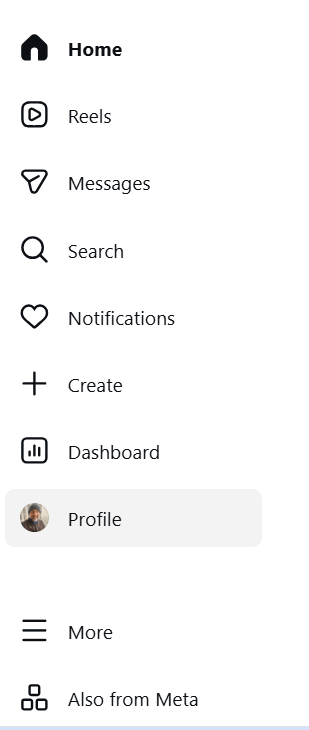
Instagram sidebar — click your Profile
Your account menu pops open — click Settings.
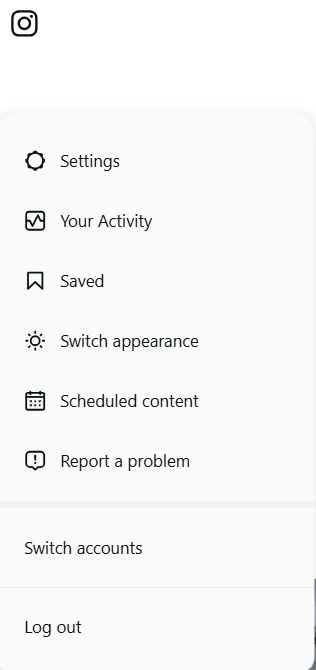
Account menu — Settings
Under Your app and media, click Website permissions.
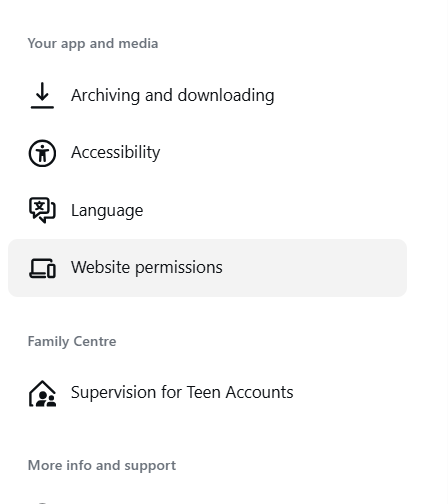
Settings — Your app and media — Website permissions
Click Apps and websites.
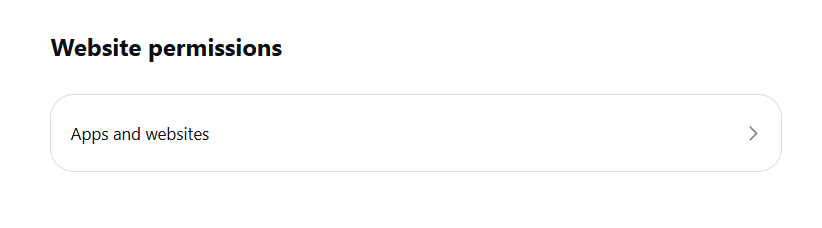
Website permissions — Apps and websites
Apps and websites opens on the Active tab, which lists apps you've already connected — empty for now, since you haven't connected anything yet. Click the Tester invitations tab instead; that's where our invitation is waiting.
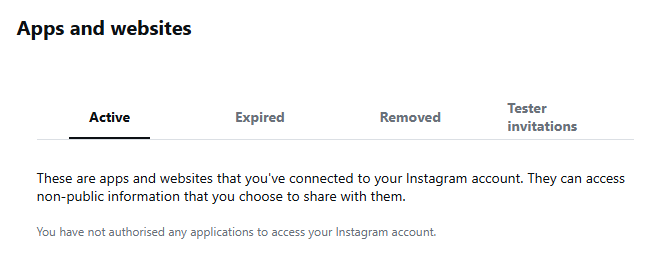
Apps and websites — Active tab (not this one — it's empty)
Find pitShop in the list. Before you accept, it shows a Decline and an Accept button — click Accept.
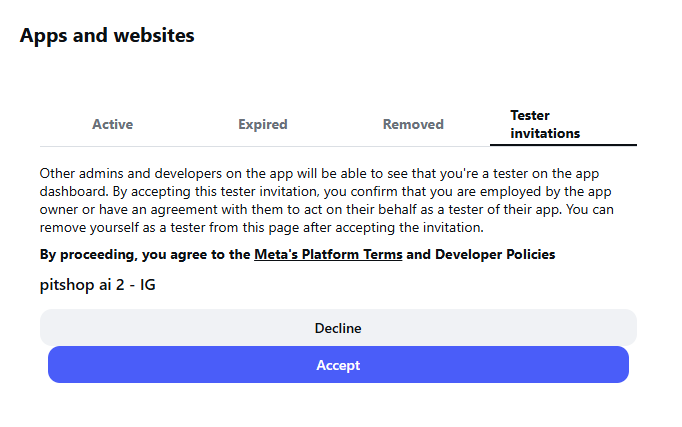
Before accepting — Decline / Accept buttons
Once you click Accept, the entry updates to show it's authorised, with a Remove button in place of Decline/Accept.
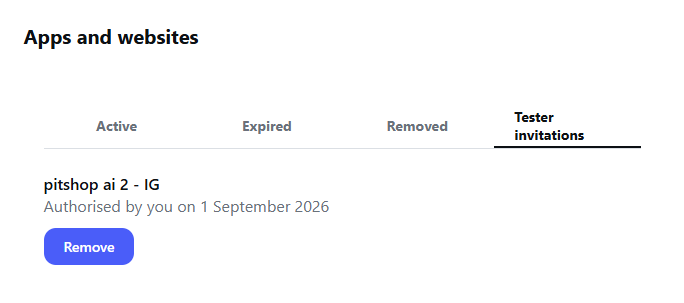
After accepting — Authorised, with a Remove button
Nothing here yet?
The invitation only appears after we've added your username as a tester on our end (step 2 above) — that can take a little while after you send it to us. If it's been more than a day, check with Contact support in the creator portal.
The Active tab still won't show pitShop yet
Accepting the tester invitation only marks you as a tester — it doesn't connect anything by itself. If you switch to the Active tab now, it'll still say you haven't authorised any applications. That's expected; pitShop only appears there once you finish connecting from inside pitShop, in the next section.
Apps and websites — Active tab, still empty right after accepting
Then, back in pitShop
Accepting the tester invitation doesn't connect anything by itself — it just clears the way for the connection Meta was previously rejecting. You still need to go through pitShop's own Connect Instagram flow, same as any other creator.
In pitShop, go to Settings and find the Social platforms card. Until you connect it here, Instagram shows Not connected — even though you've already accepted the tester invitation on Instagram's side.
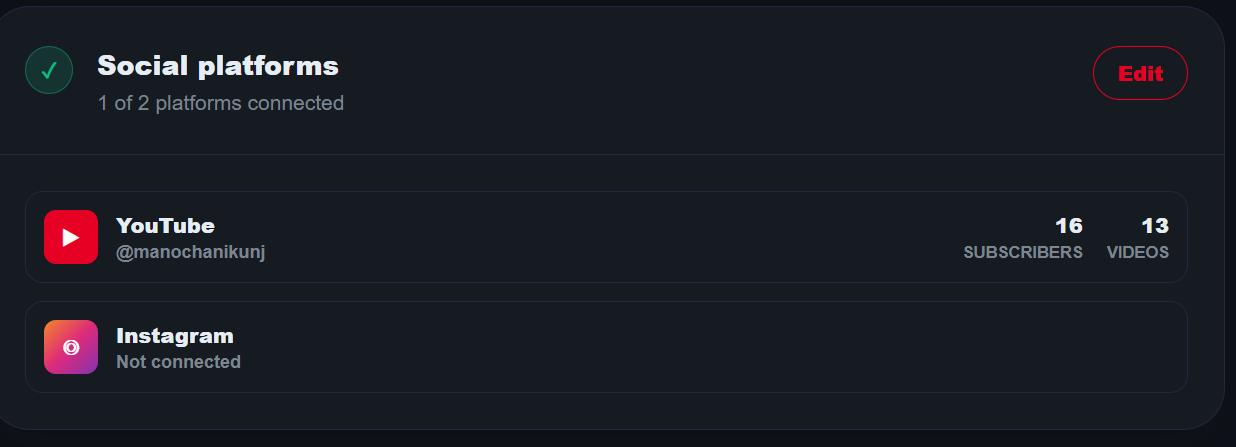
Settings — Social platforms, Instagram not connected yet
Click Edit on the Social platforms card. If you'd already saved an Instagram handle just for preview, you'll see a note that follower, reel, and view counts need a connected account, with a Connect Instagram button — click it.
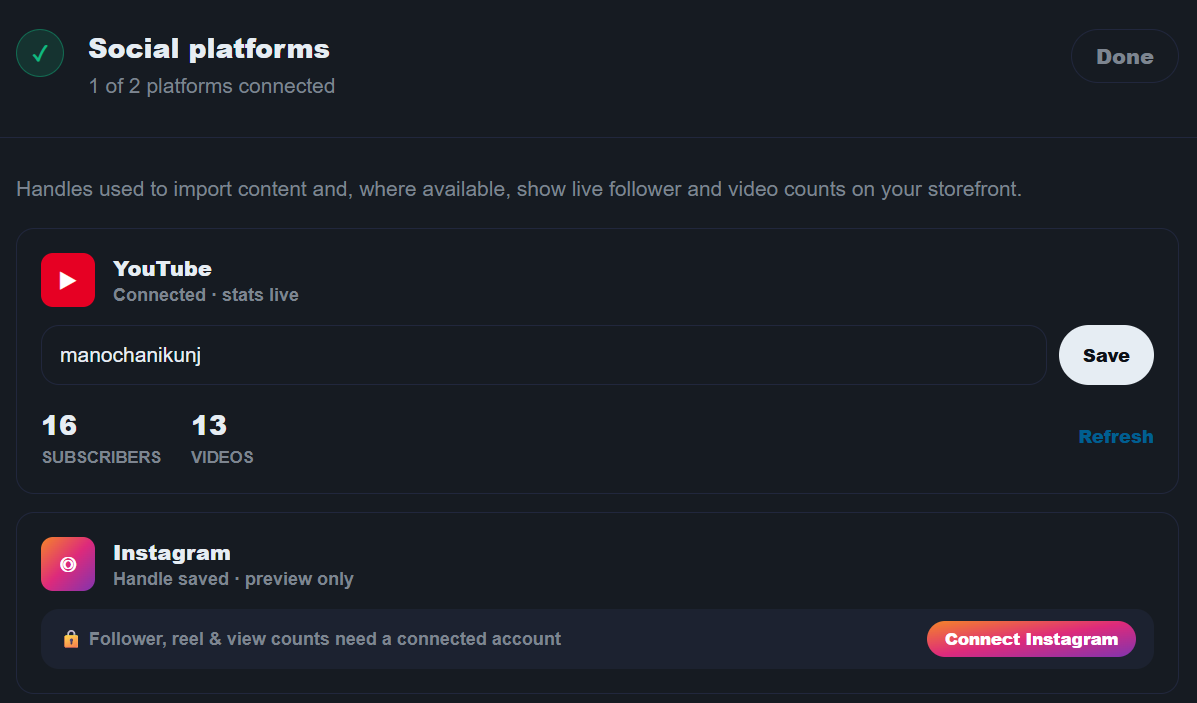
Social platforms — Edit view, Connect Instagram button
Connect Instagram redirects you to Instagram's own login screen. Log in if you're not already. Your account needs to be a Business or Creator account for this — a Personal account won't work (see Troubleshooting below if that's your situation).
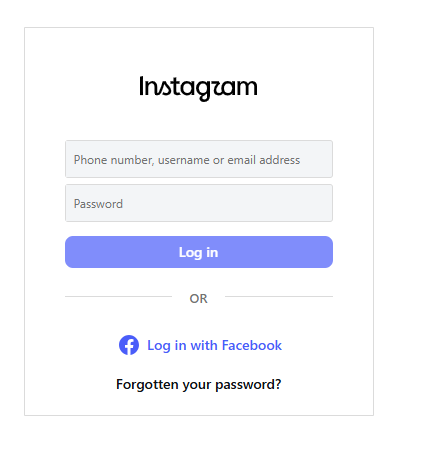
Instagram login screen
Instagram shows what pitShop is requesting: viewing your profile and media is required, plus toggles for managing comments, messages, publishing content, and insights. Review these and click Allow.
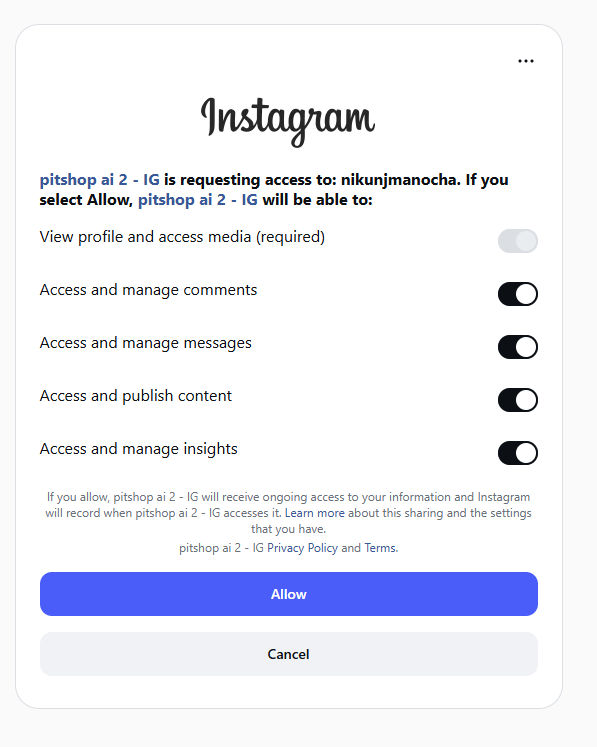
Instagram — Allow pitShop's requested permissions
Instagram redirects you back to Settings with the connection complete. Social platforms now shows 2 of 2 connected, and Instagram displays live follower and reel counts instead of "Not connected."
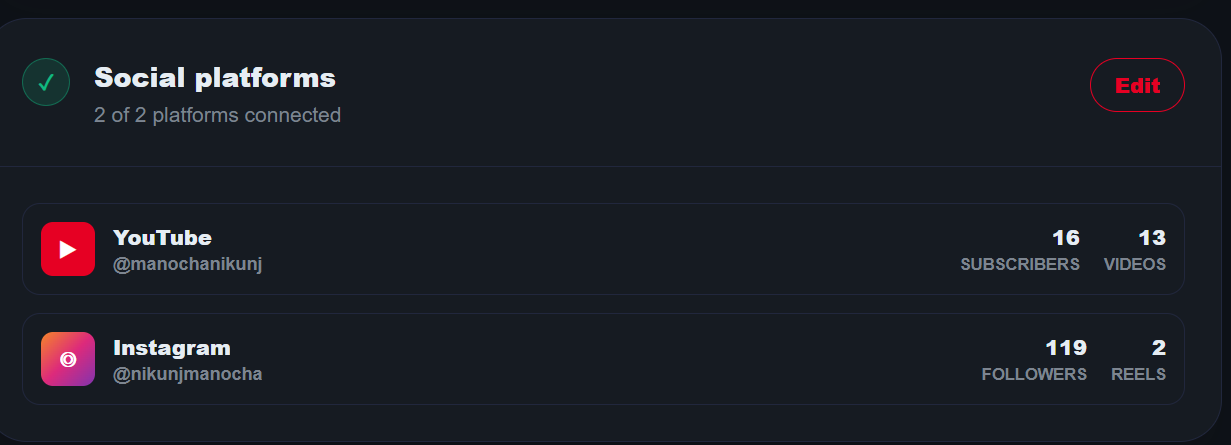
Settings — Social platforms, Instagram connected with live stats
Now the Active tab updates too
Only at this point — after finishing the connect flow inside pitShop, not just after accepting the tester invitation — does Instagram's own Apps and websites → Active tab show pitShop as a connected app.
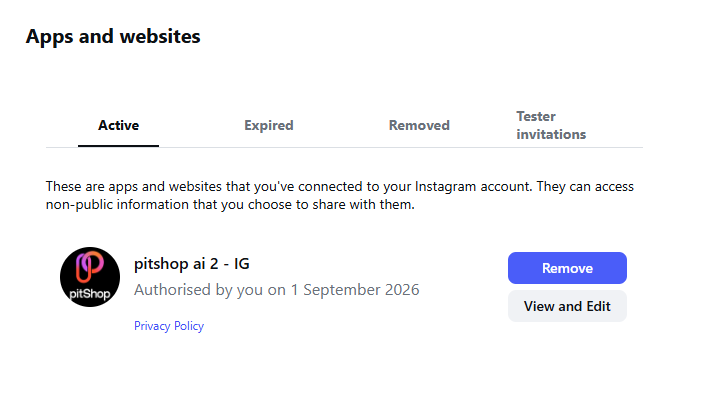
Apps and websites — Active tab, now showing pitShop
Is my password safe?
Yes. Both the tester invitation and the connection itself happen entirely on Meta's own screens — pitShop never sees or stores your Instagram password, and you can revoke access at any time from your Instagram account settings.